Run a Workspace report in Teams
Ask for a read-only report from a direct message with your Bot. In this example, a care team reviews appointment reminder activity before its weekly meeting.
Before you start
Link your Teams account. Choose a Workspace and a Workflow you can already read in Gravity Rail. The Bot also needs access to that Workspace. If the report requires protected Workspace information, both the Teams app and your linked account must be approved for it. You can use a private Gravity Rail Chat when those approvals are unavailable.
Ask for the report
-
Open the Bot's direct message in Teams. Replace the Workspace, Workflow, and dates in this example with your own:
In the Training Workspace, give me a read-only report for the Appointment Reminders Workflow from November 9 through November 15, 2026, Pacific time. Count the Assignments that started each day. Show the date and count in a table, give the total, and include a link to the Workflow. Leave out Member details.
-
If the Bot asks which Workspace or Workflow you mean, supply the full name in the same direct message. Keep the request read-only.
-
Check that the reply identifies the Workflow, date range, time zone, and what it counted. If the Bot sends a private link to the result, open it in Gravity Rail with your own account.
-
Ask a follow-up in the same conversation. For example: “Which day had the most starts? Use the same report.”
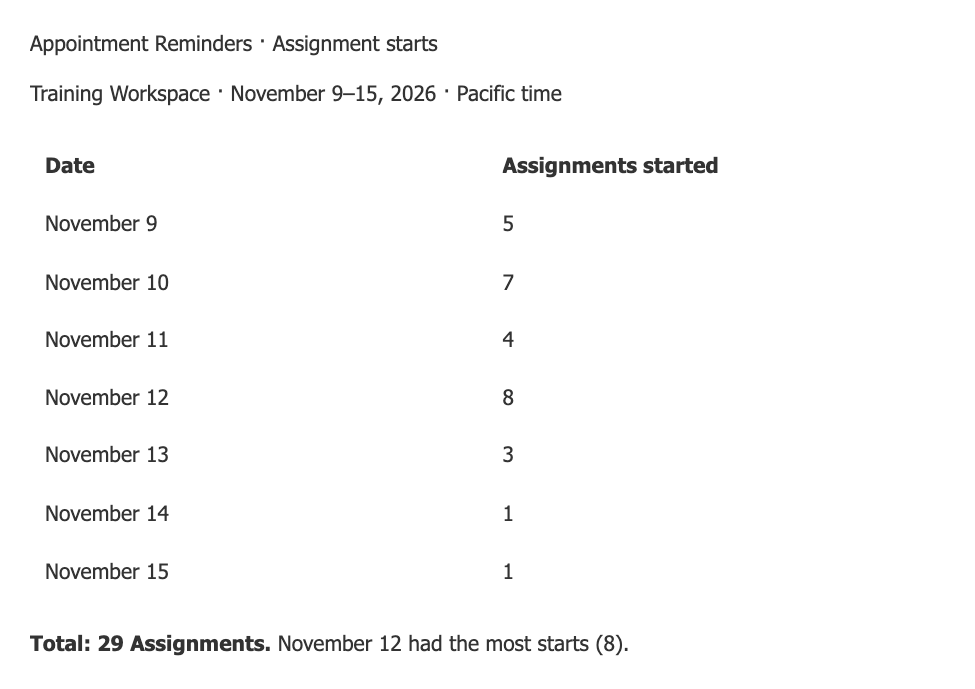
Example Assignment report previewed with Microsoft’s Adaptive Cards renderer. Your totals come from the selected Workspace and dates.
To make the results comparable across meetings, use complete dates and specify a time zone. If the Bot offers counts for a different status, ask it to state which status it used before you compare the results.
Related
- Microsoft Teams — Install the app and link your account
- Bot Workspace access — Choose which Workspaces a Bot can use