Email your Bot
You can email a Bot directly from the verified email address on your Gravity Rail account. You can also ask it to email you from a private Gravity Rail Chat. Use these sample counts to check a round trip without sharing any Workspace records.
Start from your inbox
-
In your Organization, open Bots, select the Bot, and click its name above the Chat. Under Email address, select the address to open a draft, or select Copy email address to compose elsewhere.
-
Compose a new message from your verified address. Put only the Bot in To and leave Cc and Bcc empty. Use Weekly request counts as the subject.
-
Send this message:
Summarize the sample requests by region: North received 12 and South received 17. Give the total and tell me which region received more.
-
Look for the reply under the Bot’s name. Check for 29 requests in total, with South ahead by 5.
-
Select Reply in your mail app. Leave the reply address intact and type above the quoted message: “What percentage of that total came from South? Round to the nearest whole percent.” The reply should use the earlier counts and give 59%.
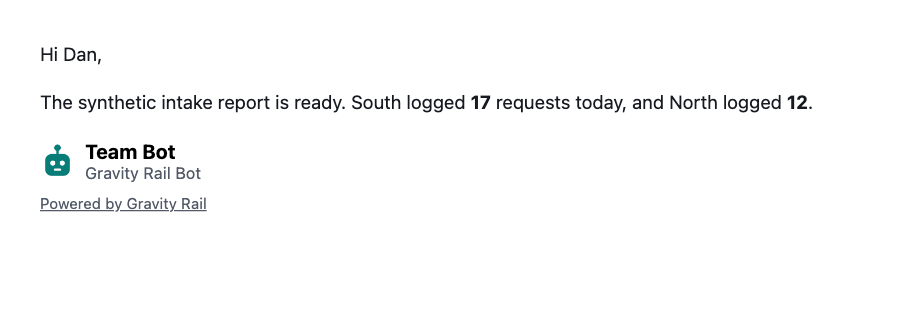
Send a result from web Chat to your inbox
- Open a new private Chat in Gravity Rail. Paste the sample counts above.
- Ask “Email me the counts as a CSV with columns for region and count.” The Bot sends to the email on the account making the request. Open the attachment and check the two regional rows.
- To continue an eligible private Chat by email, use Reply on the new message. A Chat with Workspace data, another participant’s messages, or prior protected data reads stays in its original channel. Open Gravity Rail to continue that work.
If no reply arrives
Check that the sending address is verified on your active Gravity Rail account and that the email went directly to the address copied from the Bot. For a follow-up, use a recent reply from the same Bot and account. Organizations that require single sign-on or multi-factor authentication should use a signed-in web Chat.
If an attachment was unavailable, read the Bot’s reply to see which part of your request it could complete. Incoming attachments become available after they pass a file scan. Continue in the web Chat when you need to provide the File there.
Next step
Work in a private Gravity Rail Chat to use a Workspace File for your next report.