Set Up Email Inboxes
Create an Inbox, choose a Workflow or human reply, and see an Action that sends email. Read the transcript
An Inbox gives your team an address and a place to handle messages. Routing rules determine when a Workflow responds and when a person handles mail. The example below uses a verified demo domain; use a domain verified for your own Workspace.
Before You Begin
- Have
inboxes:writeto create an Inbox and a verified email domain available to your Workspace. To use Compose, Send, or Reply in the app, you needinboxes:admin. - Choose whether unknown senders should be stored for staff review and which Workflow, if any, should handle Member mail.
Create an Inbox
- Open Connections → Inboxes, then choose New Inbox.
- Name the Inbox, choose an available domain, and set its address.
- Enable Store unknown-sender email if your team should review messages from new senders. Select the Workflow for routed mail, then create the Inbox.
- Review the routing behavior: stored mail from unknown senders is available to your team, while the AI does not process it. A human answers rule or human Inbox owner can handle mail without an AI rule.
- Open a stored message to review it. Choose Reply to respond from the Inbox; the recipient and subject are filled in. Add the sender as a Member only when appropriate.
The synthetic dialog below separates retaining unknown mail from AI handling. Your available domains may differ.
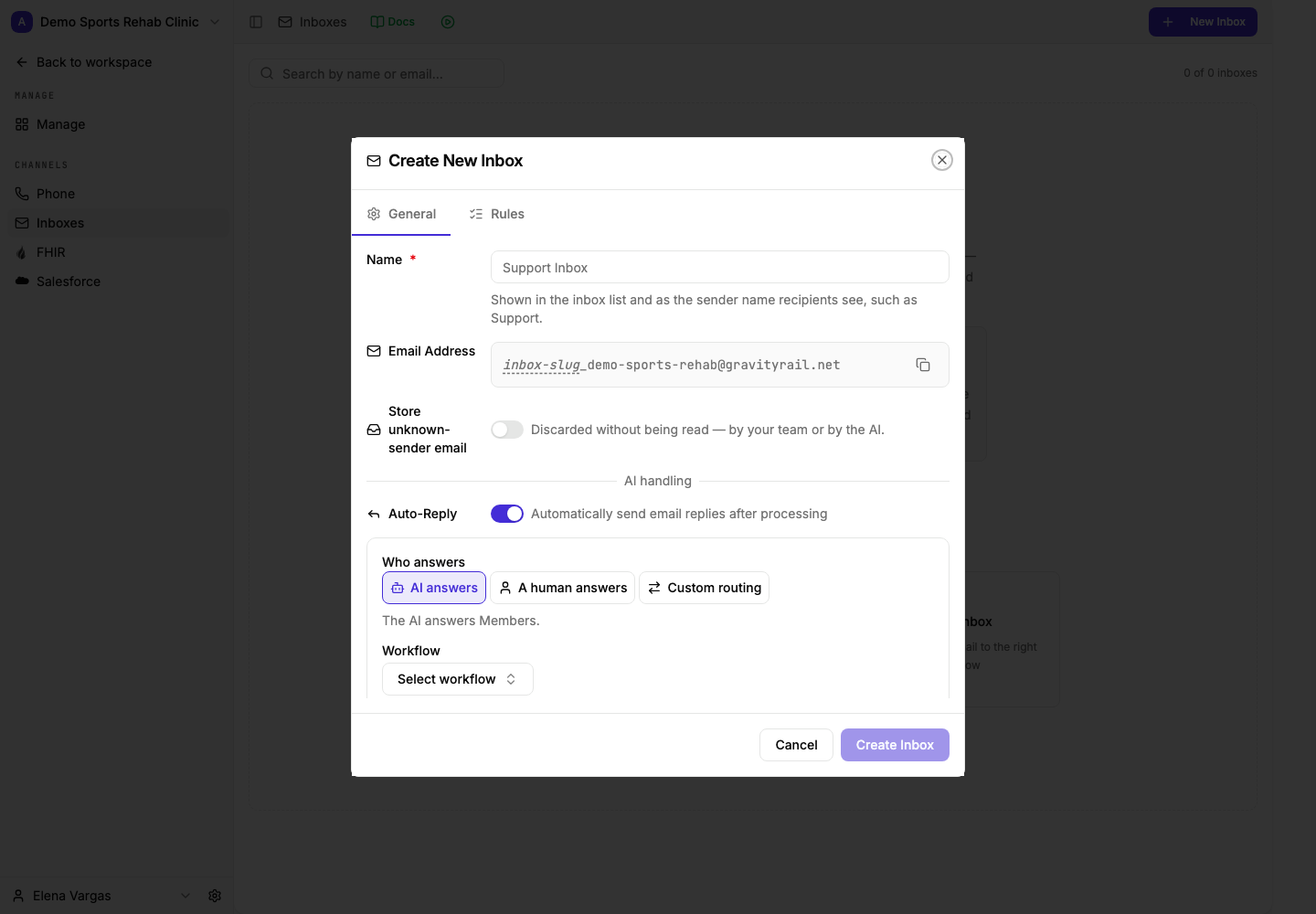
Off discards unknown-sender mail without anyone reading it. On retains it for staff review; it still does not go to the AI.
Choose whether to retain unknown mail separately from who answers Member mail.
View full size ↗The first label starts open. Hover or focus to explore; click or tap to pin.
Review the Email Action Example
An Action can send email from an Inbox when its configured event occurs. In the demonstration, the Action is disabled and the setup stops before saving. Keep it disabled while reviewing; no email is sent.
What You Should See
The Inbox has an address, unknown-sender behavior, and a Workflow or human handling path that matches your needs. Any Action you review remains disabled until you deliberately configure and enable it.
See Email Inboxes for routing and inbox details. Continue with Create a Site.