Set Up Phone Numbers
Connect a Workflow and configure after-hours calls. Read the transcript
Use the routing rules on an existing phone line to decide how recognized Members' calls are handled during and after business hours. This setup changes routing configuration; the lesson does not place a call.
Before You Begin
- Have an existing phone number and
phones:writeto edit its routing rules. Choosing the number’s Owner does not grant this permission. - Configure the Workspace business hours and timezone, and have the target Workflow ready.
Configure Call Routing
- Open Connections → Phone, then select the existing line.
- In Settings, find the ordered rules under Phone calls. Edit the Members rule, select the target Workflow, and set When to Business hours. Save.
- Add a Voicemail rule. Enter a greeting, set When to After hours, and Who to Members. Save.
The time windows keep these Member rules separate. The always-on anonymous-caller rule remains separate as well; messaging rules are not changed by this setup.
The synthetic Settings example below shows the separate call and messaging lists before applying this business-hours setup.
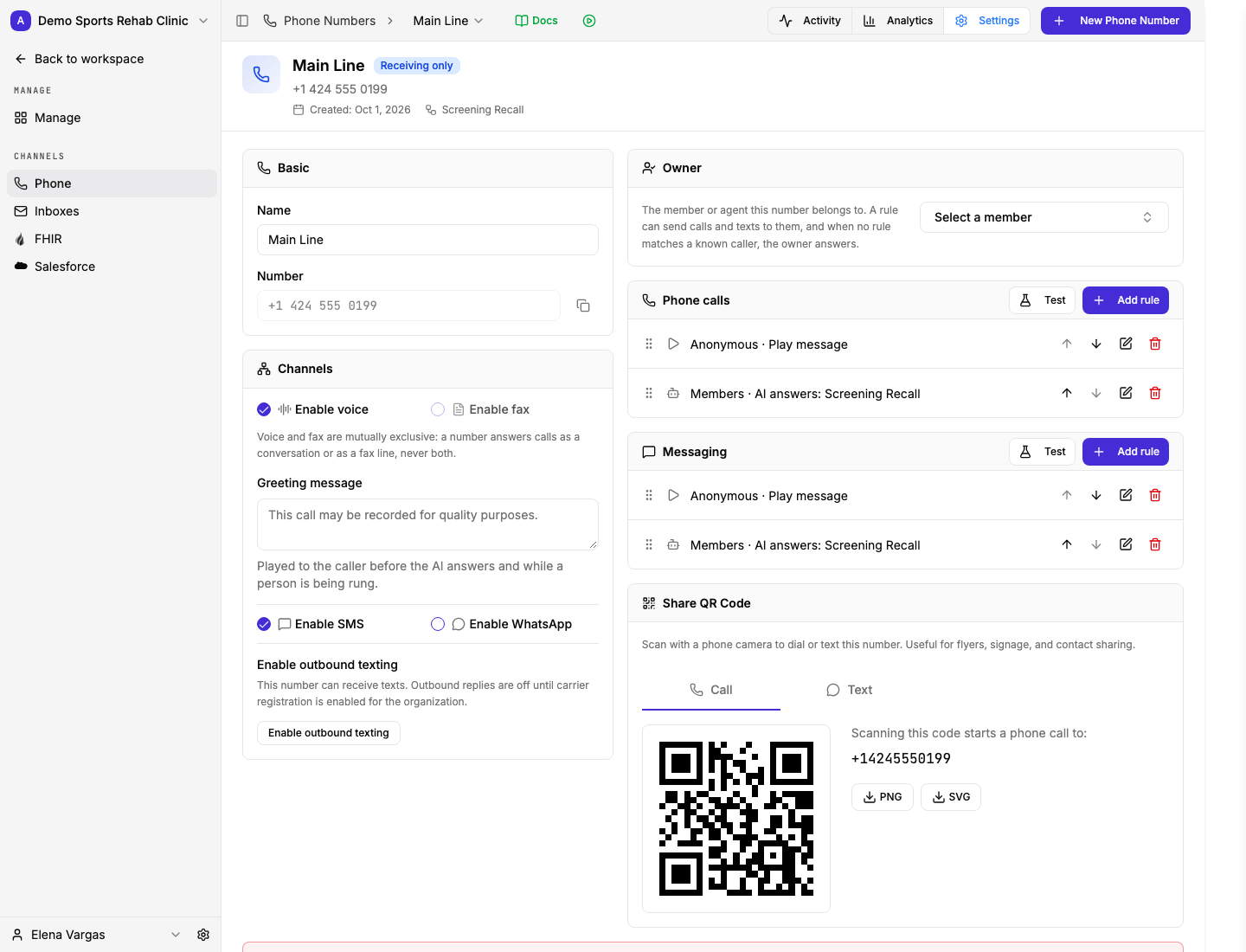
Choose which channels this line handles. Phone configuration requires phones:write; enabling a channel does not grant staff access.
Channels, the routing owner, and ordered rules serve different purposes on phone Settings.
View full size ↗The first label starts open. Hover or focus to explore; click or tap to pin.
What You Should See
The line has a Member call rule for business hours and a Member voicemail rule for after hours. Check the saved rule order and Workspace hours before relying on the routing.
See Phone & Voice for number settings and routing details. Continue with Set up Email Inboxes.