Bots
Your Team Bot is the Bot Gravity Rail creates when your Organization sets up its first Workspace, if the Organization has no Bot yet. Your administrator can rename it. If you work in a Workspace, open Members → Bots to see which Bots work there.
Open Bots in the Organization menu to see all your organization's Bots. Select a Bot’s name to resume your most recent web Chat with it. If you have none, the Bot starts your first Chat. Use New Chat to start another. Each card links to up to three recent Chats and shows how many Bot replies you haven’t read. A reply counts as read when it comes into view in an open, visible Chat. For a long history, select Load more Chats to finish checking which Chats you can open. Select and N more on a Bot card to open its full Chat list.
The card shows its goal, Workspace access, ability to manage the Organization, and per-user memory setting. Icons show when the web browser or code interpreter is on.
A star marks the default Bot. Organization admins can select Make Default in an active Bot’s card menu or Chat settings. Each Slack app installation has one assigned Bot. Changing the default Bot leaves Slack assignments unchanged. Making a Bot the default also gives it permission to manage the Organization. It keeps this permission if you choose another default.
Team Bot tutorials
Choose the task you want to complete. You can try the web and email examples with the sample numbers in the guides, before giving the Bot any Workspace data.
| What you want to do | Where to start |
|---|---|
| Plan an enrollment request Site, set up staff intake, and verify a live submission | Build a patient enrollment Site with Team Bot |
| Get a first answer and check the Bot’s Workspace access | Work with your Bot in Gravity Rail |
| Install the Teams app, link your identity, and verify a DM and a channel mention | Set up Microsoft Teams |
| Report on one Workspace from Teams | Run a Workspace report in Teams |
| Connect Slack and follow a request in its original thread | Work with your Bot in Slack |
| Hand off a longer request, check its progress or stop it | Track background work |
| Review a Workflow, file a support request or schedule a follow-up | Track work and get support |
| Start a private Chat from your inbox or receive a report by email | Email your Bot |
Select the Bot’s name at the top of a web Chat to open its sidebar. An organization admin can set Workspace access there. A Bot acts with the requester’s permissions in the Workspaces an organization admin allows. It has no Workspace role of its own. Choose which Workspaces a Bot can use. In a shared channel, access also depends on who can see the result.
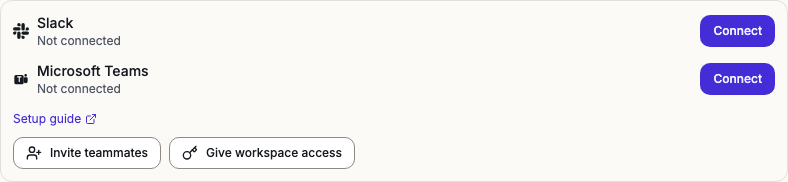
If you are setting up a new Workspace, its onboarding Chat offers shortcuts to connect Microsoft Teams or Slack, invite teammates and set Workspace access.
What a Bot Keeps
Each Bot has its own files. Two kinds shape how it works:
- Memory — notes the Bot keeps in its files and uses in later work. To add one, ask the Bot to remember it. See Memory.
- Skills — instructions in the Bot's files that it follows for a kind of task. See Skills.
How Do I Connect a Bot to Slack, Teams, or Discord?
The Bot sidebar has a Connections group with one row each for Slack, Microsoft Teams, and Discord. For Slack and Discord, an organization admin uses Connect on the row to set up that app for the Bot. For Microsoft Teams, Gravity Rail sets up the app for you. After an app is set up, each teammate links their own account in the same place.
Linking an account connects a person's chat app identity to their Gravity Rail account. It does not give that person access to more Workspaces.
For Microsoft Teams, Gravity Rail hosts the Teams app and sends you a package to install. Follow Microsoft Teams. For the Connections page and how apps are shared between Bots, see Connections.
Email a Bot
- In your Organization, open Bots, select the Bot, and open Settings.
- Under Email address, select the address to open a draft in your email app, or select Copy email address to compose elsewhere.
- Send from the verified email address on your Gravity Rail account. Put the Bot alone in To and leave Cc and Bcc empty. A new email starts a private Chat with the Bot.
Use Reply on the Bot’s response to continue your email Chat. If you ask the Bot to email you from a private Gravity Rail Chat, you can also continue that Chat by email when the message supports replies. Keep the reply address your email app fills in and write above the quoted text. Supported attachments are scanned before the Bot can read them.
If you ask for email from a Slack, Microsoft Teams, or Discord room, return to that room to continue the discussion.
If you get no reply, check your sending account, recipients, and spam folder. For a reply to an older Bot email, try a new message to the address in Settings. If your Organization requires single sign-on or multi-factor authentication, or the Chat contains Workspace data or another person’s messages, continue in Gravity Rail. If you are unsure whether a task ran, open the Bot Chat and check before asking again. You can also open a support request with the Bot’s name and the time you sent the email. Try Email your Bot to send a sample report and check that a reply uses your earlier figures.
When a Bot Can't Do Something
When a Bot hits a real gap in Gravity Rail, such as a bug or a missing feature, a linked teammate can ask it to file a support request or a feature request. This works in an organization Chat, Slack, Microsoft Teams, and Discord.
Before it files, the Bot checks that teammate's open requests. If one already matches, it comments on that request instead of filing a new one. Either way, it gives the teammate the link.
The Bot shows a request's text only when it answers that teammate alone, in a place that can hold protected information. Elsewhere it shows only the request's status and a link to open it in Gravity Rail.
In a private Gravity Rail Chat, a linked teammate can also ask the Bot to close a workspace support request, or reopen one staff resolved. The Bot shows the exact request and asks them to approve it before anything changes; a request the customer closed stays closed.
The requests appear on the Support Requests page.