Microsoft Teams
Install a Bot in Microsoft Teams so your team can work with it where they already chat. People send the Bot a direct message, or @mention it in a channel, and it answers in the same conversation.
Gravity Rail hosts the Teams app for your Bot. You tell Gravity Rail your Microsoft tenant, Gravity Rail sends you a ready Teams app package, and your Microsoft 365 admin installs it. You do not register a bot or build the app yourself.
Who Sets Up the Bot in Teams?
| Who | What they do |
|---|---|
| Microsoft 365 admin | Sends your tenant ID to Gravity Rail, then uploads and installs the Teams app package. |
| Gravity Rail | Creates the Teams connection for your Bot and sends you the app package. |
| Gravity Rail organization admin | Adds the Gravity Rail staff account for setup and removes it afterwards, unless you choose to keep it. Approves linked teammates for protected workspace information. |
| Each teammate | Links their own Teams account in Gravity Rail. |
What Do I Need Before I Start?
- A Bot in Gravity Rail, with access to the Workspaces it will work in.
- A Global Administrator or Teams Administrator who can upload and manage custom Teams apps.
- If your tenant requires Microsoft Entra admin consent for sign-in, an administrator authorized to grant it.
- A Gravity Rail organization admin, with the Organization Owner or Admin role.
- Microsoft Teams for each person who will use the Bot.
How Do I Add the Bot to Teams?
Step 1: Send Your Details to Gravity Rail
Microsoft 365 admin
- Sign in to the Microsoft Entra admin center.
- Open Overview and copy the Tenant ID.
- Contact Gravity Rail or your account team. Send:
- Your tenant ID.
- Which Bot the Teams app is for.
- Whether to approve the app for protected workspace information. See Can the Bot Use Protected Information in Teams?
To set up the connection, Gravity Rail needs an organization admin account in your Organization. If it does not have one, Gravity Rail asks your Gravity Rail organization admin to make a Gravity Rail staff account an organization admin. Do this on your Organization's Members page:
- If the account is already a Member of your Organization, an Owner or Admin changes its role to Admin. Do not invite it again.
- Otherwise, an Organization Owner invites the account with the Admin role.
- An Admin cannot invite with the Admin role. Invite the account as a Member instead, and after it accepts, change its role to Admin.
After setup, your Gravity Rail organization admin removes that account on the Members page. Gravity Rail tells your organization admin when setup is done. Keep the account only if you choose to. To reconnect the app later, add the account again the same way.
Gravity Rail sets up the connection and sends you a Teams app package, a .zip file. The protected-information choice is fixed when Gravity Rail sets up the connection. To change it later, ask Gravity Rail to reconnect the app.
Step 2: Upload and Install the App
Microsoft 365 admin
- Open the Teams admin center in the tenant you gave Gravity Rail.
- Go to Teams apps → Manage apps and select Upload new app. In some tenants, this appears under Actions → Upload new app. Upload the
.zipthat Gravity Rail supplied for your Organization and Bot. Use the package as received. Microsoft's custom app upload instructions cover both menus. - Open the uploaded app and allow the people who will try it to use it. For a pilot, start with your test group. Install the app for them using your Teams app setup policy, or have them add it from your organization's app catalog.
- Review the permissions requested by the package. Approve them if they meet your pilot’s requirements.
- If your tenant requires Microsoft Entra admin consent for sign-in, ask an authorized Entra administrator to grant it.
Alternative for Microsoft 365 admins. If your tenant manages apps in the Microsoft 365 admin center, open Agents → All agents → Add agent, or Settings → Integrated apps. Upload the package, select the pilot users and follow the publication prompts. Review the same package permissions before finishing. If your tenant requires Entra admin consent, complete step 5 as well.
The app asks for these permissions:
| Permission | What it allows |
|---|---|
Microsoft Graph openid, offline_access, User.Read | Each teammate signs in with Microsoft to link their account. These do not give the Bot access to your organization's mail, files, or other messages. |
ChannelMessage.Read.Group | The Bot reads messages in the team channels where the app is installed, and nowhere else. |
ChatMessage.Read.Chat | The Bot reads messages in the group chats where the app is installed, and nowhere else. |
These permissions let Teams deliver messages without an @mention. The Bot needs them to follow a thread or answer on a configured topic.
For a channel, ask a team owner to add the app to the team from its listing in Teams. For a group chat, open the chat, select Actions and apps in the compose box, find the app, and follow the prompts to add it to the chat. Whoever adds it reviews the chat permissions. Microsoft's instructions for adding an app to a Chat show where to find the menu.
How Do Teammates Link Their Teams Account?
Each teammate
Every person who works with the Bot in Teams links their own Teams account to their Gravity Rail account. If you send the Bot a one-to-one message before linking, it can reply with instructions to connect. Use the same Microsoft account you use in that Teams chat.
- Sign in to Gravity Rail with your own account.
- Open Bots in the Organization menu to see your organization's Bots. You can also open Members → Bots in a Workspace to see the Bots that work there.
- Select the Bot's name in the Organization, or New Chat in the Workspace, to open a Chat.
- At the top of the Chat, select the Bot's name to open the Bot sidebar.
- Under Connections, select Connect beside Microsoft Teams. A Member sees the personal account page for that Bot. An organization admin sees the connection’s setup page.
- Select Connect my account.
- Sign in with Microsoft. Use your work account in your organization's tenant, the same account you use in Teams.
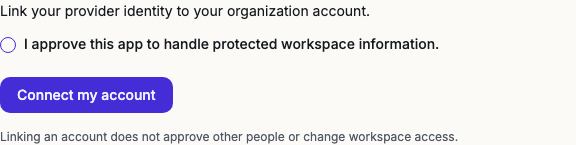
When you return to Gravity Rail, the page shows Your account is connected. The Microsoft Teams row in the Bot sidebar shows Connected. Send a fresh Teams message to receive a reply.
If Connect takes you back to the Organization home page before you see Connect my account, contact Gravity Rail support. Tell them which Bot you selected and that the redirect happened before Microsoft sign-in. Keep your current Organization role.
If the row shows An organization administrator must connect a Teams application first., the connection does not exist yet. Contact Gravity Rail or your account team.
Can the Bot Use Protected Information in Teams?
Two approvals control whether the Bot can use protected workspace information, such as patient details, in Teams:
- The app. You tell Gravity Rail your choice in step 1. It is off unless you ask for it. To change it later, ask Gravity Rail to reconnect the app. A reconnect needs the Gravity Rail staff account in your Organization again, as in step 1.
- Each person. Your Gravity Rail organization admin approves each linked teammate. In the Bot sidebar, select Manage or Connect beside Microsoft Teams to open the Teams connection. Select the People tab, and choose Approve for the person under Participant approvals.
In a team channel or group chat, Gravity Rail must also verify who can see the conversation. Everyone present must have a linked Teams identity approved for protected information. To share Workspace results, everyone who can see the reply must have access to the underlying data. If the Bot cannot verify the audience or its access, use a direct message or a private Gravity Rail Chat for that work. The Bot can still answer ordinary questions in the shared conversation.
How Do I Talk to the Bot in Teams?
| Where | How to ask | Where the Bot answers |
|---|---|---|
| Direct message | Send the Bot a message. | In your direct message with the Bot. |
| Group chat | @mention the Bot or ask about a configured topic. | In the group chat. |
| Team channel | @mention the Bot in a post or follow the channel’s Respond when setting. | In the thread of that post. |
By default, @mention the Bot each time you want a reply. Under Respond when in the Bot sidebar, an organization admin can also allow follow-ups in threads the Bot has joined or invite the Bot to answer on selected topics. An admin can limit who may ask to selected linked teammates.
A person can take over a thread from the Bot. Their replies start with their name in bold, and the Bot does not answer in that thread until the person hands it back.
Verify the Setup
- Have a pilot teammate link their account and open the app in Teams. In a direct message, ask: “Draft a three-item checklist for reviewing an appointment reminder Workflow. Use Gravity Rail's documentation and keep it read-only.”
- Check that the Bot replies in the direct message. If it asks a clarifying question, answer in that chat. The reply should contain a checklist or explain what information it needs.
- If your pilot includes a team channel, add the app to that team. In a channel post, @mention the Bot and ask it to summarize a short, non-sensitive note you include in the post. Check for the reply in the post's thread.
Once those checks pass, try running a Workspace report in Teams.
How Do Workspace Notifications Reach Teams?
A Workspace Apps Admin chooses the sender. Each teammate links their account.
A Workspace's notifications reach Teams as messages from your organization's Bot. Nothing is sent until a Workspace Apps Admin chooses which Bot sends them.
- In the Workspace, open Teams. Under Notifications, open Teams notifications.
- Under Sender, choose a Bot Teams connection. Only connections whose Bot can reach this Workspace are listed. None sends no Teams notifications; other notifications are not affected.
- Select Save. Saving sends nothing to Teams.
Direct messages. A teammate who already receives a notification also gets it in their chat with the Bot when:
- they linked their Teams account to the Bot (see How Do Teammates Link Their Teams Account?);
- the Bot is installed in their personal Teams chat. They do not need to message the Bot first.
Your notifications on the same page shows what Gravity Rail knows about your own direct messages without contacting Microsoft. If the Bot is not installed in your personal Teams chat, a notification cannot reach you; install it there.
Channels. The Channels list shows the channels the selected Bot is in, once someone has posted in them while the Bot is a member. Approve a channel and select Save so a Send Notification Action or an escalation rule can choose it. Adding the Bot to a channel does not approve it for any Workspace, and each Workspace approves its own channels. If the Bot is removed from a channel and added again, approve the channel again.
What a notification looks like. One sentence saying a notification is waiting, and an Open Gravity Rail button. It never contains the notification text, names or record details. People still sign in, and the usual access checks apply.
Replying. Reply to a notification to ask the Bot about it. The Bot knows which notification you mean. In a direct message it answers with what you may see. In a channel it gives the link only. Only the person a direct message notification was sent to can ask about it.
Muting the Workspace or unsubscribing from a notification stops its direct messages. It does not stop channel posts; an Apps Admin removes a channel's approval instead. Changing the Sender stops posts to channels approved for the previous connection.
Can the Bot Send or Read Files in Teams?
Not as Teams attachments. In a personal chat, a group chat and a channel, the Bot cannot attach a document you ask it to send. A Manager session's chart may still appear as an inline image in a cleared personal chat. This is separate from Gravity Rail's own file sharing.
If the file is a Workspace File in a workspace you and everyone in this conversation can read Files in, the Bot can give you a Gravity Rail link that opens the File in the app. The link uses each person's own sign-in and the access that File already has, so it opens only for people the File is shared with and the Bot does not send the file itself. If the Bot cannot give you a link, it can email you a copy of a file it creates, such as a CSV.
It can email only your own linked Gravity Rail account address: if you have not linked your account, link it first and then ask. If your account has no email, or your organization requires multi-factor authentication that your Teams sign-in cannot show, continue in your Gravity Rail Chat instead, where you sign in with it. The Bot will not attach a file in Teams in any of these cases.
In a direct message, the Bot can read a document you attach — a PDF, Markdown, CSV or XLSX file up to 10 MB — when your Teams account is linked and both you and the app are approved for protected information. Images have no readable text, so the Bot says where to find the image instead. In a group chat or channel the Bot cannot read an attachment at all: Teams gives it the attachment's name, not the contents. To have the Bot read a document in a shared conversation, either:
- Ask the Bot in your private Chat with it in Gravity Rail, where it can read the file you attach.
- Save it as a Workspace File you can see, then ask the Bot about it here or in Gravity Rail; it reads only a workspace you and everyone in this conversation can read Files in.
You can also paste the relevant text into Teams. When the Bot cannot read or send the file, it says so and offers the alternative.
How Do I Disconnect the Bot From Teams?
Your account. Open the Bot sidebar from a Chat with the Bot, as in How Do Teammates Link Their Teams Account?, and select Manage beside Microsoft Teams. Open the actions menu beside Your account is connected., select Disconnect my account, and confirm. Other people stay connected.
The app, for everyone. A Gravity Rail organization admin opens the Teams connection from the Bot sidebar (Manage or Connect beside Microsoft Teams), opens the actions menu beside the connection status, selects Disconnect, and confirms. The Bot stops working in Teams for everyone using this app. New requests and pending deliveries stop.
Your Microsoft 365 admin can also remove the app in Teams, in the Microsoft 365 admin center or the Teams admin center.
Why Doesn't the Bot Reply in a Channel?
Check these in order:
- The app is added to that team. A team owner adds it from the app's page in Teams.
- Your message @mentions the Bot or matches the channel’s Respond when setting.
- You linked your Teams account. See How Do Teammates Link Their Teams Account?
If @mentions work and replies without a mention do not, check these settings:
- In Gravity Rail, have an organization admin open the Bot sidebar and find Respond when. Select the channel if it has its own settings. For follow-ups in a thread the Bot has joined, use Addressed or already participating. For topic replies, use Addressed, participating, or relevant topics and check that the message matches a topic on the list. Check Respond to if the sender is missing from the people allowed to ask.
- Ask your Teams admin to verify that the app has the message permission from step 2 for this conversation. ChannelMessage.Read.Group applies to team channels and ChatMessage.Read.Chat applies to group chats.
- Topic replies need a verified conversation audience and approval to process protected information there. Ask your Gravity Rail organization admin to check the app and participant approvals above. Use an @mention if the conversation is ineligible or you want to ask about a different topic.
Why Does Microsoft Sign-In Fail?
- Error
AADSTS50020. You signed in with an account from a different Microsoft tenant. Sign in with your work account in your organization's tenant, the one where the app is installed. - Sign-in keeps choosing the wrong account. Use a private browser window, or choose to use another account on the Microsoft sign-in page. The same fix works when an admin center opens with the wrong account.
Related
- Bots — What Bots are and where they work
- Organizations — The Connections page and how chat apps are shared between Bots
- SSO Setup — Let your team sign in to Gravity Rail with Microsoft Entra ID