Notification Preferences
Members have separate preferences for Email, SMS, and Voice notifications. A notification attempt is eligible only when its rule enables that channel, the member's preference is on, and the member has a usable contact for it. Provider acceptance or delivery is not guaranteed. These preferences govern notifications; they are not permission to contact a member for unrelated outreach.
How It Works
| Rule enables channel | Preference is on | Usable contact exists | Eligible for a send attempt? |
|---|---|---|---|
| Yes | Yes | Yes | Yes |
| No | Any | Any | No |
| Any | No | Any | No |
| Any | Any | No | No |
Email needs an email address, SMS needs a phone that can receive texts, and Voice needs a phone number. An eligible attempt can still fail at the provider or carrier. Voice notification calls are not yet available; see Notifications for channel availability.
Change a Member's Preferences
- Open Members.
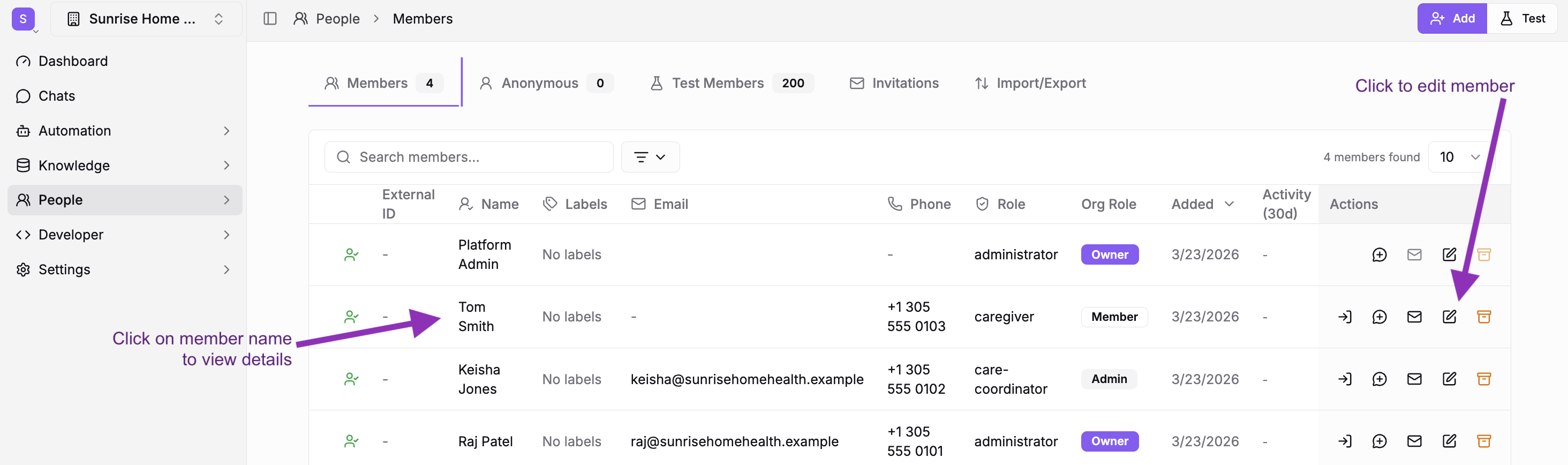
- Select a member, then choose Edit from the list or the member's details page.
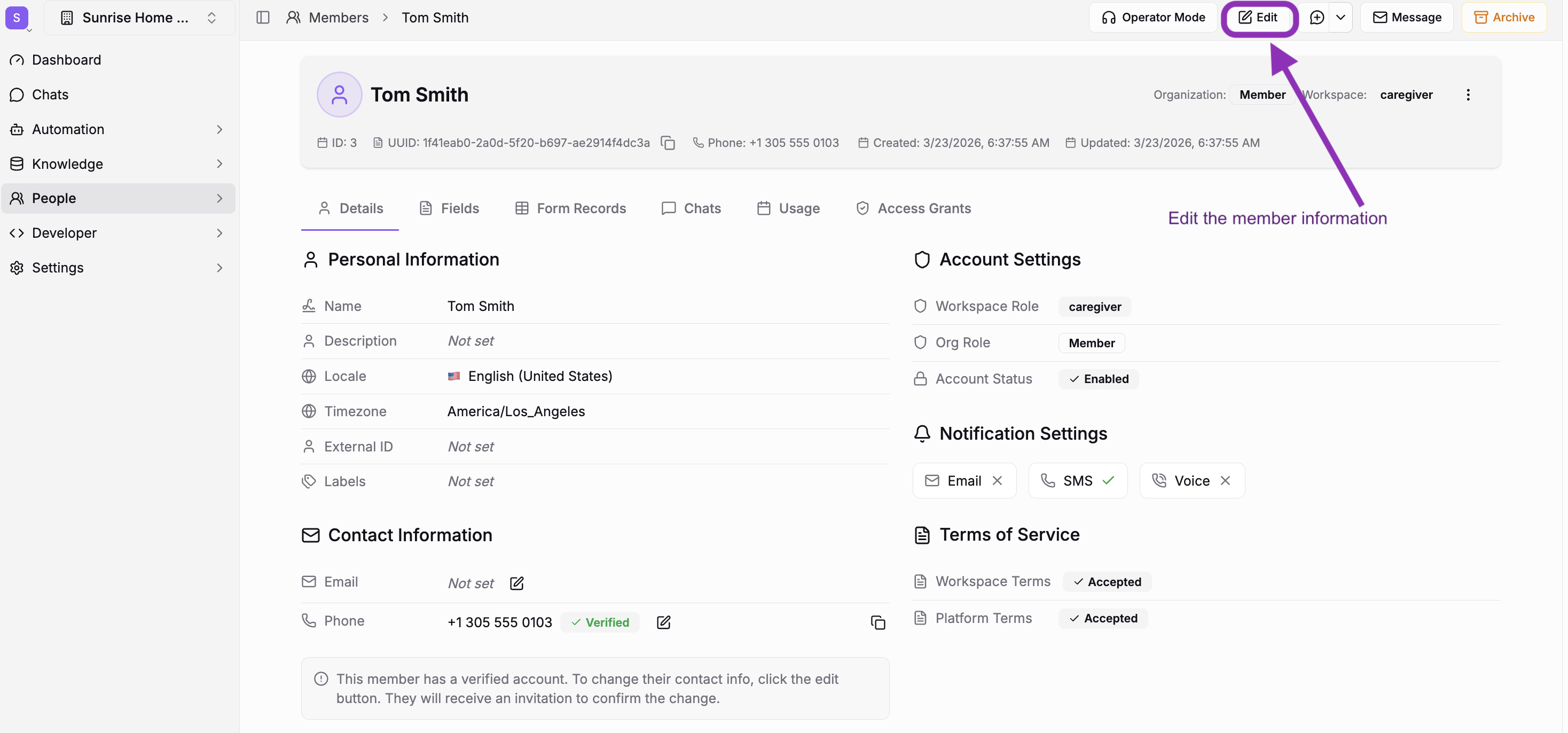
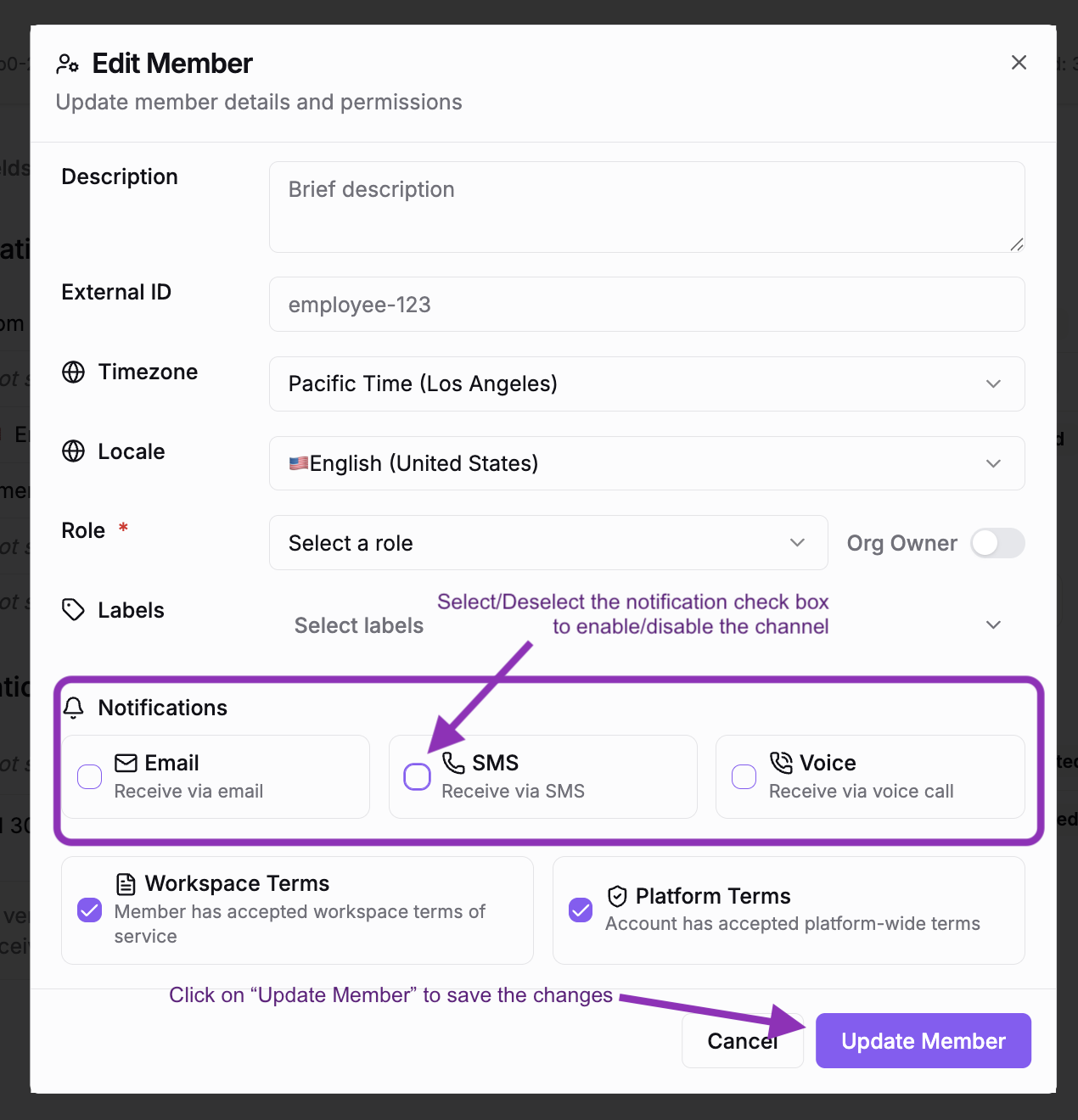
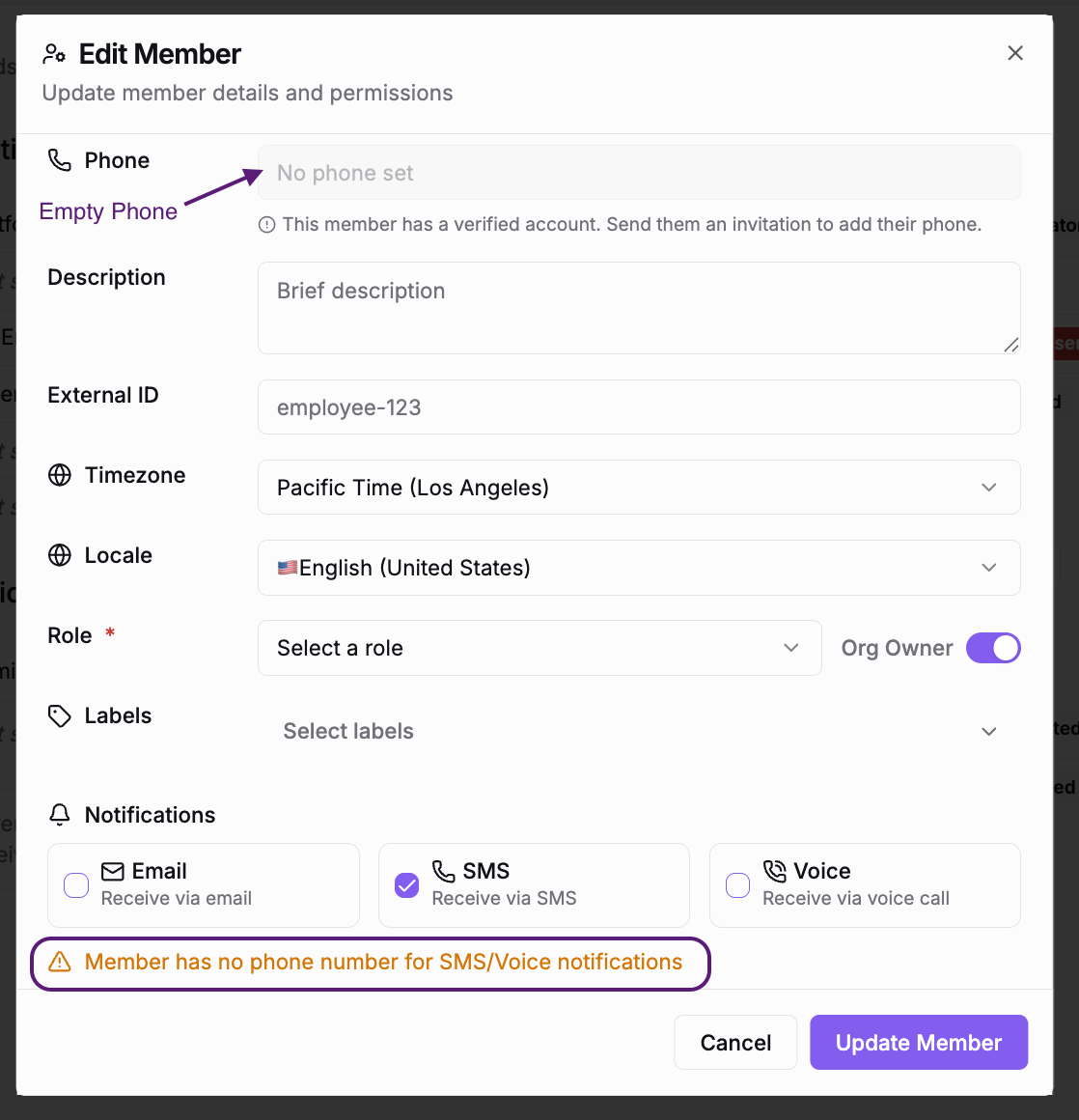
- In Notifications, turn Email, SMS, or Voice on or off, then choose Update Member to save.
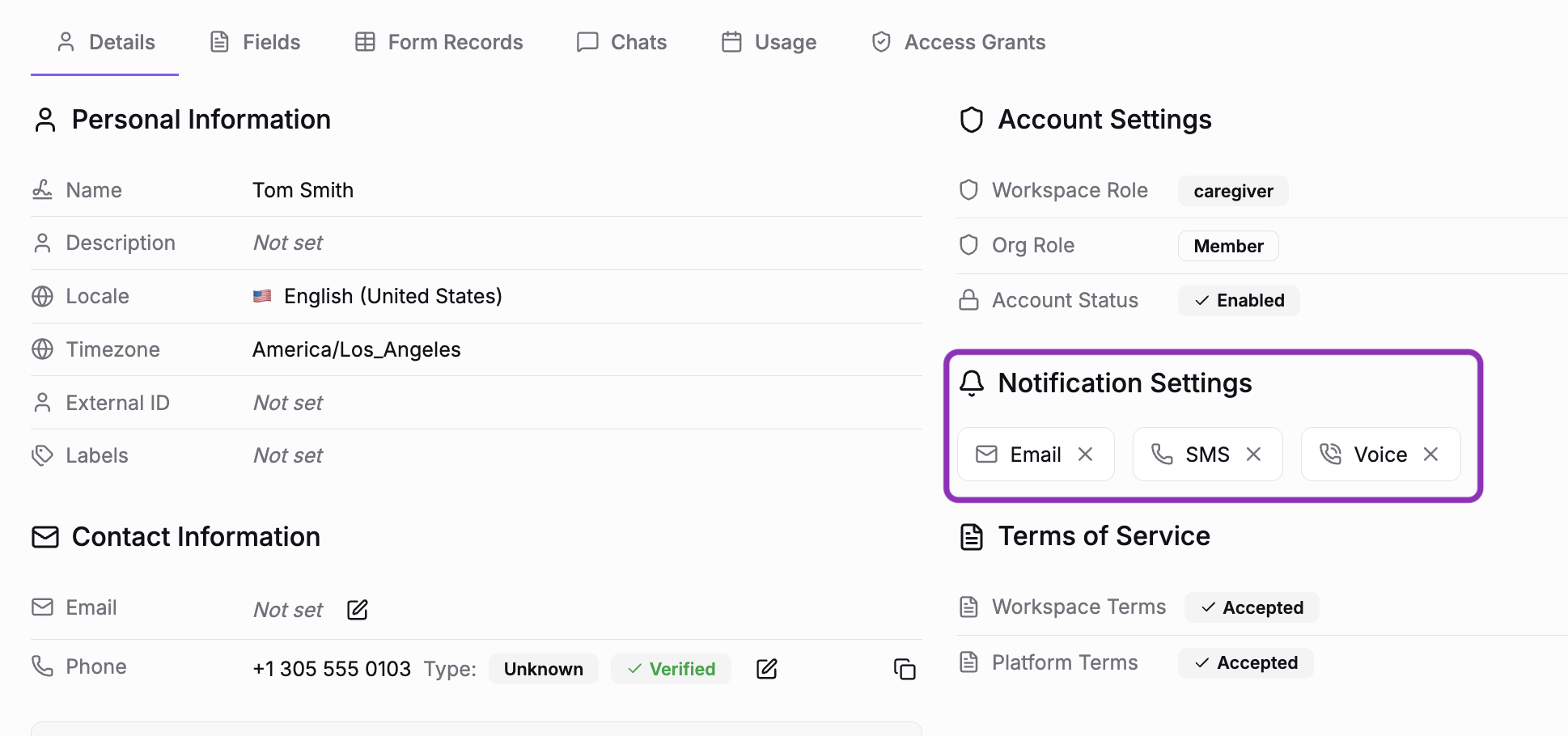
- Confirm the saved preferences on the member details page.
A channel without a usable contact cannot be enabled in the form. If a previously enabled preference becomes unreachable after contact details change, the form shows a warning and keeps the stored preference so you can turn it off. The send-time gate skips an unreachable channel without clearing that preference.
CSV Imports and Defaults
When importing members, include notify_sms, notify_email, and
notify_voice columns to set explicit preferences. See
Importing Members for the CSV format.
Defaults depend on how the Member is created. The Members form starts new preferences off. Some provisioning and import paths that omit Email or SMS preferences turn them on when the corresponding email address or phone number is present. Explicit values are preserved. Existing preferences do not change automatically when contact details change; an unreachable channel is gated at send time while its stored preference remains available to edit. A phone being present does not by itself mean it can receive SMS.
SMS Keyword Opt-Out
When a Member texts STOP to a workspace number, that workspace's SMS notification preference is turned off. When the sending brand can be resolved, SMS from that brand is also suppressed until the Member texts START. Turning the preference back on does not clear STOP suppression; a STOP to one brand does not opt the Member out of every sender. See Phone & Voice for keyword details.
A texted STOP also stops the AI phone calls your automations place, because under US rules opting out by text also opts a Member out of automated calls. A call your staff place is not blocked. Texting START lifts it.
For event, workflow, and recipient selection, see Notifications.
Related
- Escalation & Human Handoff — Configure who gets notified on escalation and which channels to use
- Routines — Run automated actions on a schedule, such as reminders and recurring reports
- Actions — Trigger automated tasks based on events
- Members — Add, edit, and manage workspace members
- Members API — Update the notification preference fields programmatically